Set up your community and live map
Start your railroad's page, bring your crew in, and put your save on a live map anyone can watch. The community takes about five minutes here on the site. The live map needs Railroader and RailCom Pro on the computer that hosts.
What you need
- A Discord server you own, or where you have Manage Server.
- For the live map: Railroader 0.6.2 or newer on the Experimental branch, and RailCom Pro on the computer that hosts the save. Only the host needs it for the map. Your crew need it to talk on the radio.
Your community
On railroaderhub.com. About five minutes, and everything can be changed later.
-
Sign in with Discord
Press Sign in at the top right of any page and let Discord sign you in. RailroaderHub sees your Discord name and the servers you're in, which is how it knows which servers you run.
-
Pick your Discord server
Open Communities and press Start a community. Your servers are listed. Press Start next to the one your railroad uses.
Server missing? You need to own it or have Manage Server there. If you just got that, sign in again to refresh the list.

-
Name your railroad
Give it a Name and check its Address: that's your page's link, railroaderhub.com/c/ and a short name.
The rest is optional: reporting marks, where and when you run, a tagline, what you run, and a Discord invite so people can join your server from your page. Use an invite that doesn't expire.
Leave Hiring on if you want people to apply. Press Start your community.

-
Make the page yours
Your community's page is up. Press Edit to add a picture, a banner and a description, so people can see what you run. Crew and Applications are next to it.

-
Bring your crew in
Press Crew. Under Invite links, press Create a link, choose the role people join as, how long the link works and how many people can use it, then press Create link. Press Copy and post the link in your Discord. Anyone who opens it joins your crew straight away.
With Hiring on, people can also press Apply on your page. Their applications wait under Applications for you to accept or decline.

-
Check the roles
Every community starts with five roles: Management, Dispatcher, Engineer, Conductor and Trainee. New crew start as Trainee.
On the Crew page, Edit roles renames them, changes what each one may do, and picks where new crew start. To move someone, press Change next to them under the crew list.

-
Add the Discord bot optional
Under Discord on the Crew page (or Set it up on your community page), press Add RailroaderHub to Discord and pick your server. Adding it takes Manage Server in that server.
Then choose where it posts new applications, sessions and news, and which Discord role goes with each crew role. People get their Discord role when you hire them.

Your live map
A live map shows one save as it runs: every train and car, where it's headed, and who's where. RailCom Pro sends it from the game that hosts the save. Your other saves stay private.
-
Install RailCom Pro
On the computer that hosts the save. Download it from the RailCom Pro page and follow its three install steps. It keeps itself up to date after that.
-
Connect it to your account optional
In Railroader, press F9 and open RailroaderHub. Press Connect and the game shows a code. Press Open the page (or go to railroaderhub.com/link), make sure you're signed in, type the code and press Connect. The game says Connected a few seconds later.
The map works without this. Connecting puts your miles, hours on duty, trains run and cars delivered on your profile.
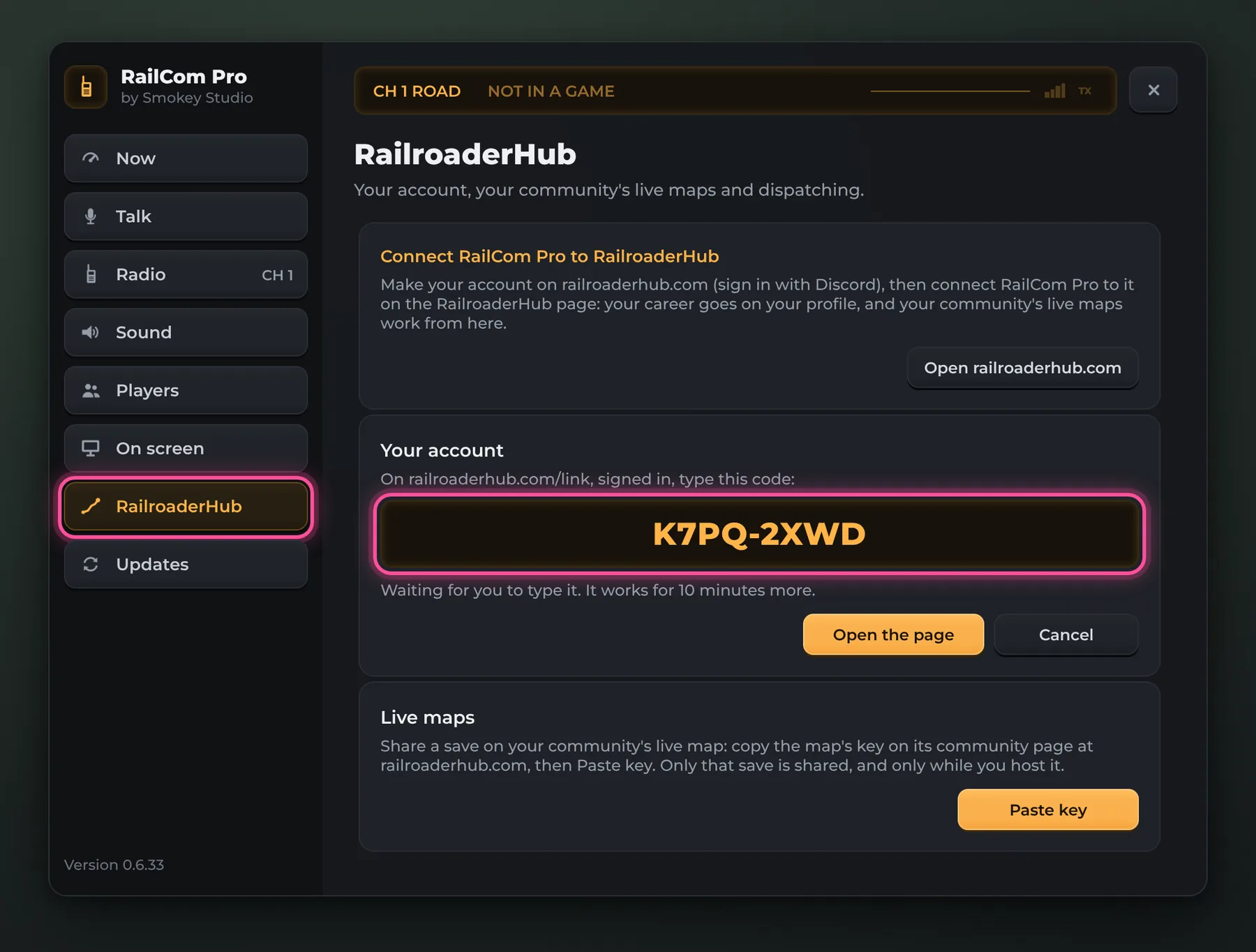
In the game: F9, RailroaderHub, Connect. 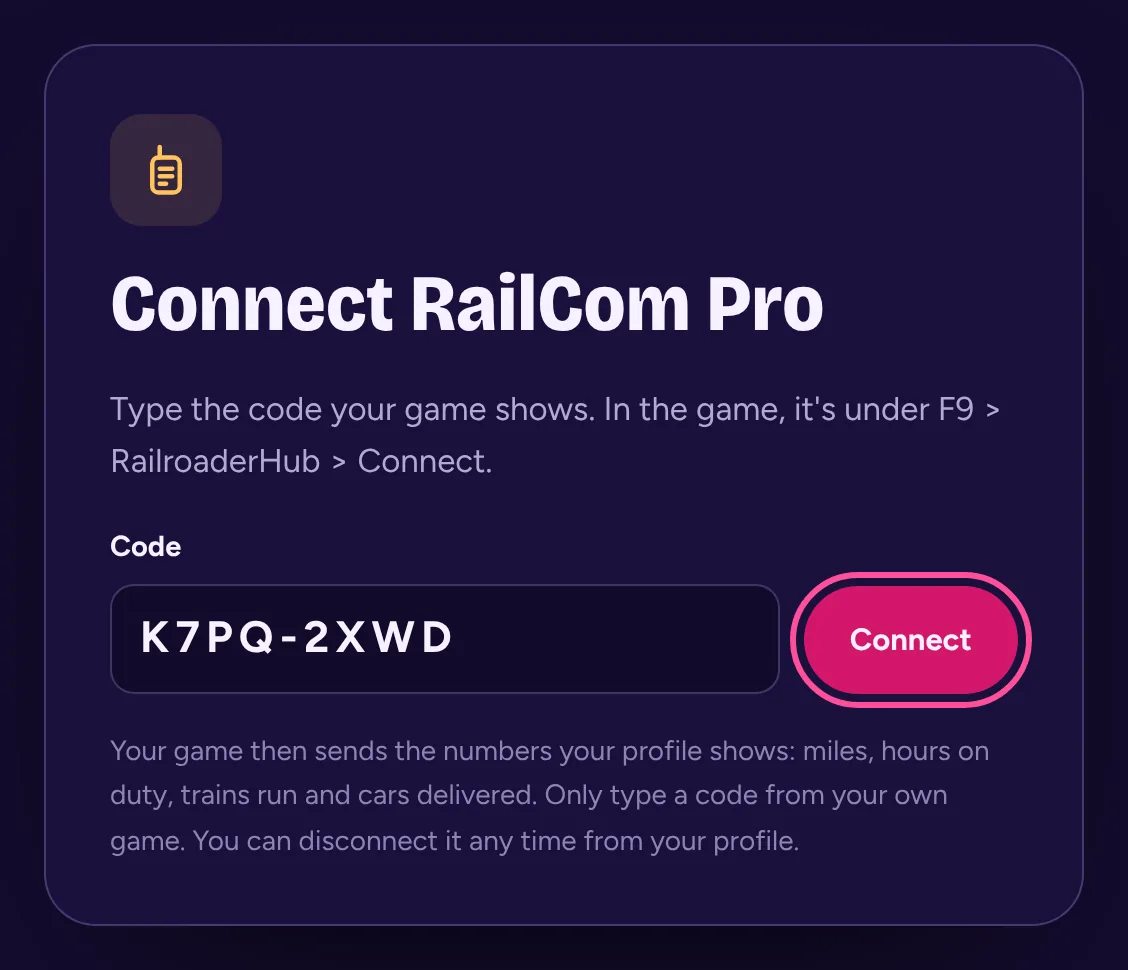
On railroaderhub.com/link: type the same code. -
Add a live map
On your community page, under Live map, press Add a live map.

Name it anything, like Main line. For Save name, type your save's name the way Railroader shows it when you load the save. Capitals, spaces and dashes don't matter.
Then choose Who can watch (anyone, or only your crew), whether to Show players, and Who can listen to the radio. Press Add map.

-
Copy the key
Your map's key shows once. Press Copy.
Anyone with the key can send to your map, so give it only to the people who host. Lost it? Press New key under the map. The old key stops working at once.

-
Paste it into the game
In Railroader, press F9 and open RailroaderHub. Under Live maps, press Paste key. Your map shows up underneath, waiting for its save.
Everyone who hosts that save pastes the key once. RailCom Pro remembers it.

-
Host the save
Load that save, on your own or hosting a game. The map's light turns blue and says Live on the map, and RailroaderHub in F9 says Live.
Only that save is sent, and only while it's loaded in your game. If you join someone else's game, nothing is sent from yours: the host's game sends it.

-
Watch it
On your community page the map now says Live now. Press Watch live, or share the page's link. Everyone you let watch sees the trains and cars move, the switches and signals, and who's where. While it's live, it's on Live now too.


Dispatching from the map optional
Your dispatchers can set switches and signals, write orders and talk on the radio from the live map while you host. Nothing in your game changes until you turn it on.
-
Give them the role
Dispatching takes a crew role with Dispatch trains. With Throw switches and Set signals they can change those too, and with Talk on the radio they can talk. The Dispatcher role has all four from the start.
Put your dispatchers in that role with Change on the Crew page.

-
Turn it on in the game
In F9, RailroaderHub, under your map, turn on Switches and signals. Written orders and The map hears the radio are there too. Each one stays off until you turn it on, and your game shows who did what.
For the radio, also set Who can listen to the radio with Edit under the map on your community page.

If it isn't working
- In F9Waiting for its save
-
The save that's loaded isn't the map's save. Load the right one. If the loaded save is the one you meant, your community page offers to switch the map to it: press Use and the save's name under the map.

- In F9Its key was refused
Someone made a new key, or the map was deleted. Press Remove on that map in the game, then paste the new key.
- In F9What's copied isn't a map key
Press Paste key right after you copy the key, before you copy anything else. Closed the key without copying it? Press New key under the map for another one.
- In F9You joined someone else's game
Only the host's game sends the map. The host needs RailCom Pro and the key.
- In F9Can't reach RailroaderHub
Your game can't get to the site right now. It keeps trying. Check your internet connection.
- On the siteMy server isn't in the list
You need to own the server or have Manage Server in it. Once you do, sign in again.
- On the sitePeople can't watch the map
If Who can watch is Only the crew, they need to sign in and be on your crew. Change it with Edit under the map.
Still stuck? Message us on Support and say what the game or the page shows.